Seesaw

Seesaw
RISD teachers and students in grades PK-2 utilize Seesaw, an online learning management system that allows students to engage in learning through creation, communication, and collaboration. Seesaw has been a district platform since 2020 and is in alignment with RISD’s Learner Growth Experience and Graduate Profile.
Seesaw allows teachers to give classroom updates, design interactive lessons, and give feedback to students on an age-appropriate platform. Additionally, Seesaw provides features that make learning more accessible for all learners by offering multimodal tools for students including audio, video, drawing, and photo/video.
Seesaw will allow students to demonstrate understanding and mastery in a variety of ways and provide the ability to create and organize artifacts in their student portfolio.
The Seesaw parent portal will help parents stay connected, informed, and engaged even more in their student’s learning process by allowing access to a student’s posted work and class announcements.

As a reminder, Focus is the official gradebook of record for RISD. Focus reflects your student’s official grade. If you have questions about grades, please contact your student’s teacher.

Accessing your Seesaw Parent Account

Keeping student data safe is a top priority. Seesaw requires a printed, email, or text invitation. All parents will receive an email invitation from Seesaw towards the beginning of each school year. If you don’t receive an invitation, you can reach out to your child’s teacher or fill out the Seesaw RISD parent support form found at s.risd.org/SeesawParent. The form will open at the beginning of each year after the email invitations have been sent out.


If you need to create a new Seesaw account, follow these steps:

  1. Download the Seesaw app or go to the Seesaw website on a computer.
  2. Tap “I’m a Family Member”
    • If you have a QR code invitation – Scan the QR code.
    • If you have an email invitation – Click the link in the email to get connected.
  3. Follow the prompts to create an account.

If you need to connect a new child to an existing account, follow these steps:

  1. Login on the Seesaw App or go to the Seesaw website on a computer.
  2. Add your student’s account:
    • If you have a QR code invitation – Tap your profile icon (top left). Tap “+Add Child’s Journal”. Scan your QR code.
    • If you have an email invitation – Click the link in the email to get connected.

Technical Support

If you need technical support for Seesaw, please complete this form. A member of the RISD team will contact you within two business days to help further troubleshoot.

Seesaw Parent Resources

Navigating Seesaw’s Family App

Frequently Asked Questions

No, your account will still exist and you will stay connected to your student’s account.
  1. Login on the Seesaw App or go to the Seesaw website on a computer.
  2. Add your student’s account:
    • If you have a QR code invitation – Tap your profile icon (top left). Tap “+Add Child’s Journal”. Scan your QR code.
    • If you have an email invitation – Click the link in the email to get connected.
  1. Sign into your Family or Student account from a desktop computer.
  2. Tap your Profile Icon, and select the gear icon.
  3. Tap Account Settings.
  4. Scroll down and tap Download Journal Archives. (If you don’t see this option, fill out the Parent Support Form and include your name, your student’s name, and the name of the Seesaw class you are in) 
  5. Tap the Download Journal button for the journal you want to download. This might take a while depending on your Internet speed and how many posts your child has in Seesaw.
For more information about downloading your student’s work, you can explore the Seesaw support page found here.

Student data privacy is of the utmost importance in RISD. You will need to make sure that adult is listed as a primary contact in Focus our student information system. You can reach out to your campus if you need to make any updates to the information listed in Focus.

If the adult is already listed in Focus, you can fill out the Seesaw parent support form to have them added to the account.
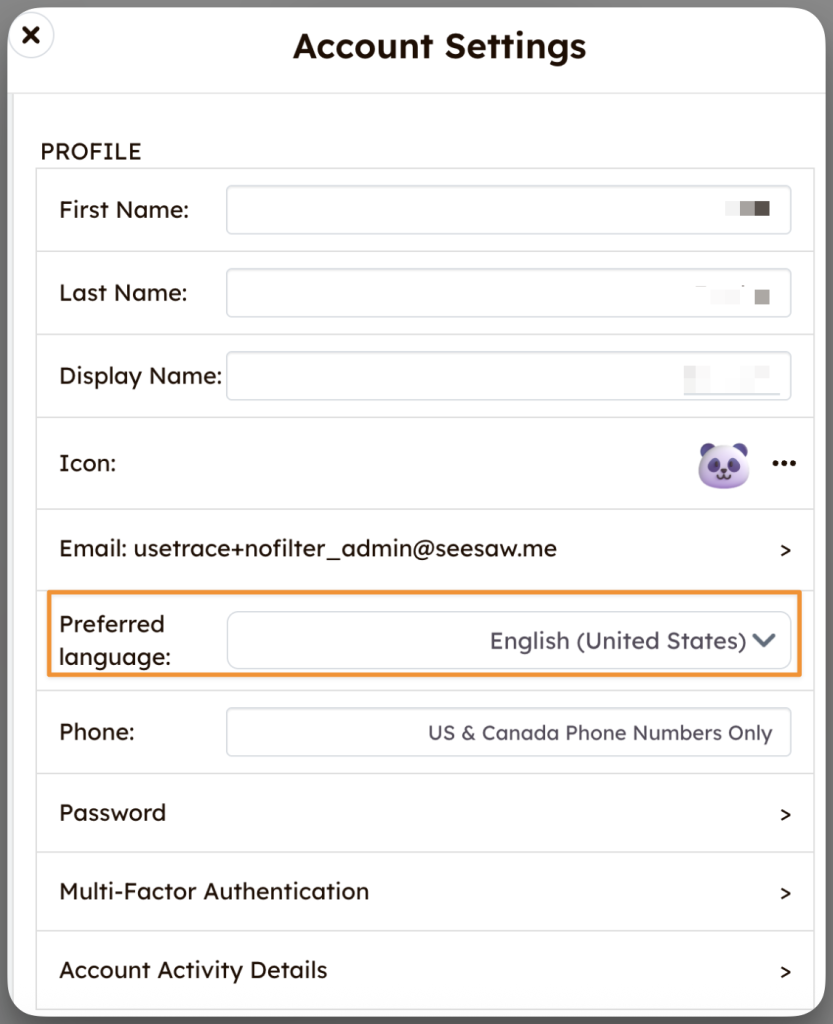
  • Tap your profile icon.
  • Tap the Account Settings gear.
  • Select your preferred language from the dropdown.
Seesaw Account Settings page with the Preferred Language selection dropdown menu with a yellow box